- Get 50% OFF Your First Consultation – Limited Time Offer!

Quick Summary :- Google Tag Manager (GTM) is a free tag management system from Google that helps businesses manage tracking tags from one central platform. It can be used for Google Analytics, Google Ads conversion tracking, Meta Pixel, remarketing tags, custom tracking scripts and other measurement tools. GTM works through tags, triggers and variables, and allows marketers to test tracking implementations before publishing them.
Tracking website activity is an important part of digital marketing. Businesses often need to add different tracking codes to their websites for tools such as Google Analytics, Google Ads, Meta Ads, and other platforms.
Adding and managing these codes manually can become difficult, especially when a website uses multiple tracking tools.
This is where Google Tag Manager (GTM) can help.
Google Tag Manager allows you to manage different tracking tags from one platform without having to edit your website code every time you want to add or update a tag.
In this blog, we will explain what Google Tag Manager is, how it works, and how to set it up on your website.
Google Tag Manager is a free tag management system from Google that allows you to add and manage tracking codes and other tags on your website.
Instead of manually adding every tracking code to your website, you can install Google Tag Manager once and then manage many tags through the GTM interface.
For example, you can use Google Tag Manager to manage:
This makes tracking management more organized and easier to maintain.
Tips: Before adding a new tracking tag through GTM, check whether the same tracking code is already installed directly on the website or through another plugin to avoid duplicate tracking.
Google Tag Manager mainly works around three important concepts:
Tags
A tag is the code or tracking configuration that you want to run.
Examples include:
Triggers
A trigger determines when the tag should run.
For example:
Variables
A variable stores information that can be used by tags and triggers.
For example, a variable could contain:
Simple Example
Tag = What should happen?
Trigger = When should it happen?
Variable = What information should be used?
Tips: When troubleshooting GTM, think through these three elements separately: what tag should fire, what trigger should activate it, and what data the tag needs.
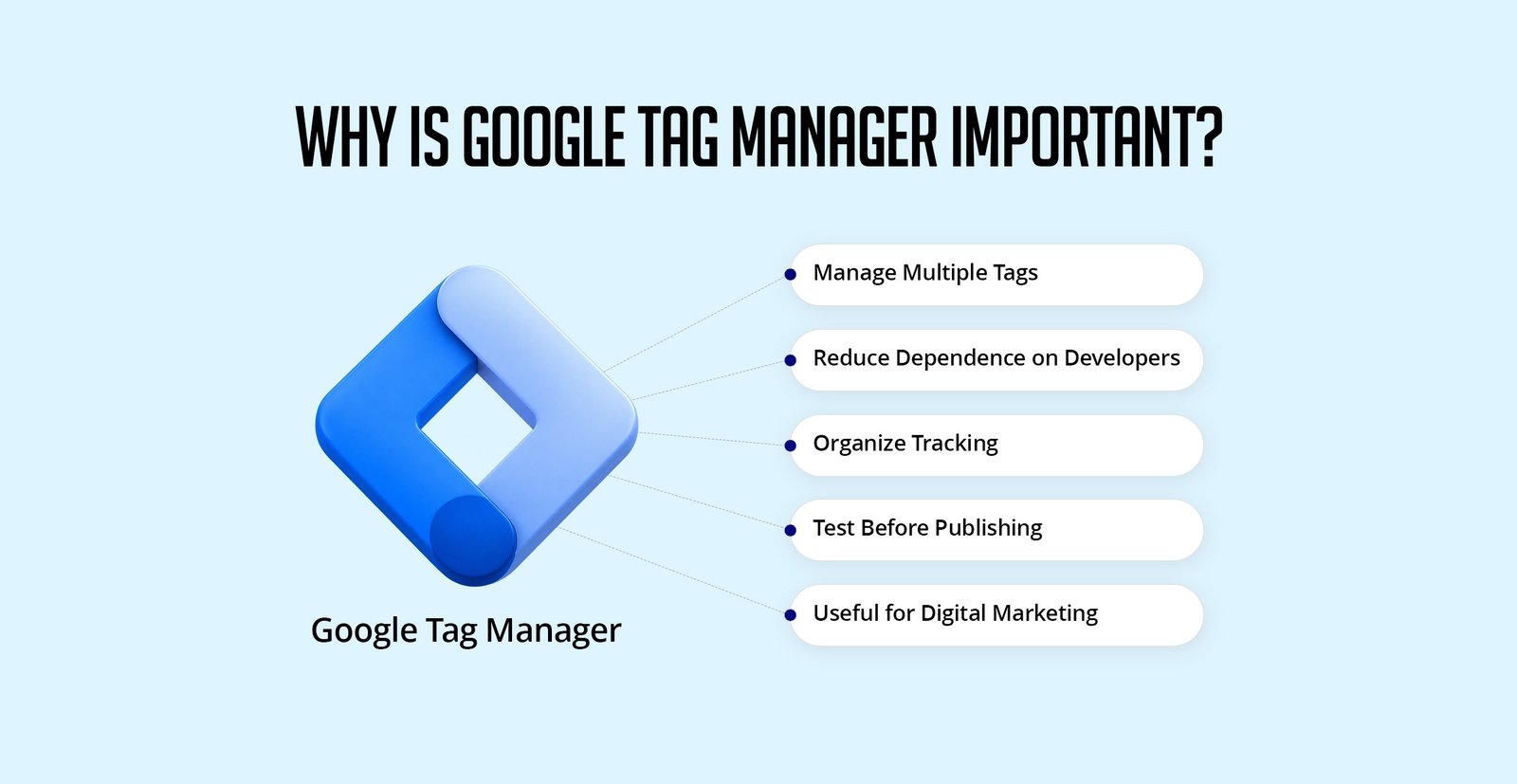
Google Tag Manager can make website tracking easier to manage.
Manage Multiple Tags
You can manage tracking tags from one central platform.
Reduce Dependence on Developers
For many common tracking tasks, marketers can manage tags through GTM instead of repeatedly editing website code.
However, complex implementations may still require developer support.
Organize Tracking
You can keep different tracking tags, triggers, and variables organized inside one container.
Test Before Publishing
GTM provides a preview and debugging environment that lets you test your setup before publishing changes.
Useful for Digital Marketing
GTM can be particularly useful when running SEO, Google Ads, Meta Ads, analytics, and conversion tracking campaigns.
Tips: GTM makes tracking easier to manage, but it does not remove the need for a clear measurement plan. Decide what you need to track before creating tags.
Step 1: Create a Google Tag Manager Account
Go to Google Tag Manager and sign in using your Google account.
Create a new account for your business or organization.
For example:
Account: Agyle Studio
Then create a container for your website.
A container is where you manage the tags, triggers, and variables for a particular website or digital property.
Tips: Keep GTM ownership under an account controlled by the business rather than relying on a freelancer or temporary vendor as the only administrator.
When creating your container, select the appropriate target platform.
For a standard website, you would generally choose:
Web
Complete the setup and create your container.
After creating the container, Google Tag Manager provides installation instructions.
You will generally receive GTM code that needs to be placed in the appropriate locations on your website.
The exact installation process depends on your website platform.
For a WordPress website, you can use an appropriate implementation method or plugin, or add the required code through your website's theme or other supported configuration.
Make sure the installation is completed correctly before moving on.
Tips: Don't install GTM through multiple methods at the same time. Duplicate container installations can result in tags firing more than once.
Once Google Tag Manager has been installed, use GTM's preview/debugging functionality to check whether the container is loading correctly.
This is important because a container that has been created but not properly installed won't collect or send your tracking data.
Tips: Always verify the container on the live website before setting up multiple tags. It is much easier to troubleshoot the GTM installation first.
Once GTM is installed, you can create a tag.
For example, you may want to connect Google Analytics with your website.
Inside Google Tag Manager, create a new tag and choose the appropriate Google Analytics configuration.
Give the tag a clear name.
For example:
GA4 – Google Analytics
Clear naming becomes especially useful when your account contains many tags.
Tips: Use consistent names that identify the platform, purpose and action. Clear naming makes future maintenance significantly easier.
After creating the tag, you need to decide when it should fire.
For example, if you want the tag to run when users visit your website, you may use a page-view-related trigger.
The basic structure is:
Tag → Google Analytics
Trigger → Page View
This means the tag runs when the specified page-view condition occurs.
Tips: Avoid using an All Pages trigger when the tag only needs to run for a specific action. Your trigger should match the purpose of the tag.
GTM can also be used for Google Ads conversion tracking.
For example, suppose you want to track a contact form submission.
The setup could look like:
User Visits Website
↓
Fills Out Contact Form
↓
Form Is Successfully Submitted
↓
Trigger Fires
↓
Google Ads Conversion Tag Fires
This allows the conversion action to be measured when the required event occurs.
Tips: Track the successful completion of the action whenever possible. A form button click alone does not always mean that the form was actually submitted successfully.
Before publishing your changes, use Google Tag Manager's Preview functionality.
Preview mode allows you to test whether your tags are firing as expected.
For example, you can check:
Testing before publishing can help prevent tracking errors.
Tips: Test both the situation where the tag should fire and situations where it should not. This helps catch overly broad triggers.
Once you have tested your tags and confirmed that everything works correctly, you can submit and publish the container changes.
It is a good practice to add a clear version name or description.
For example:
Added GA4 and Google Ads Conversion Tracking
This makes it easier to understand what was changed later.
Tips: Use meaningful version descriptions whenever you publish. GTM's version history becomes much more useful when each change is documented clearly.
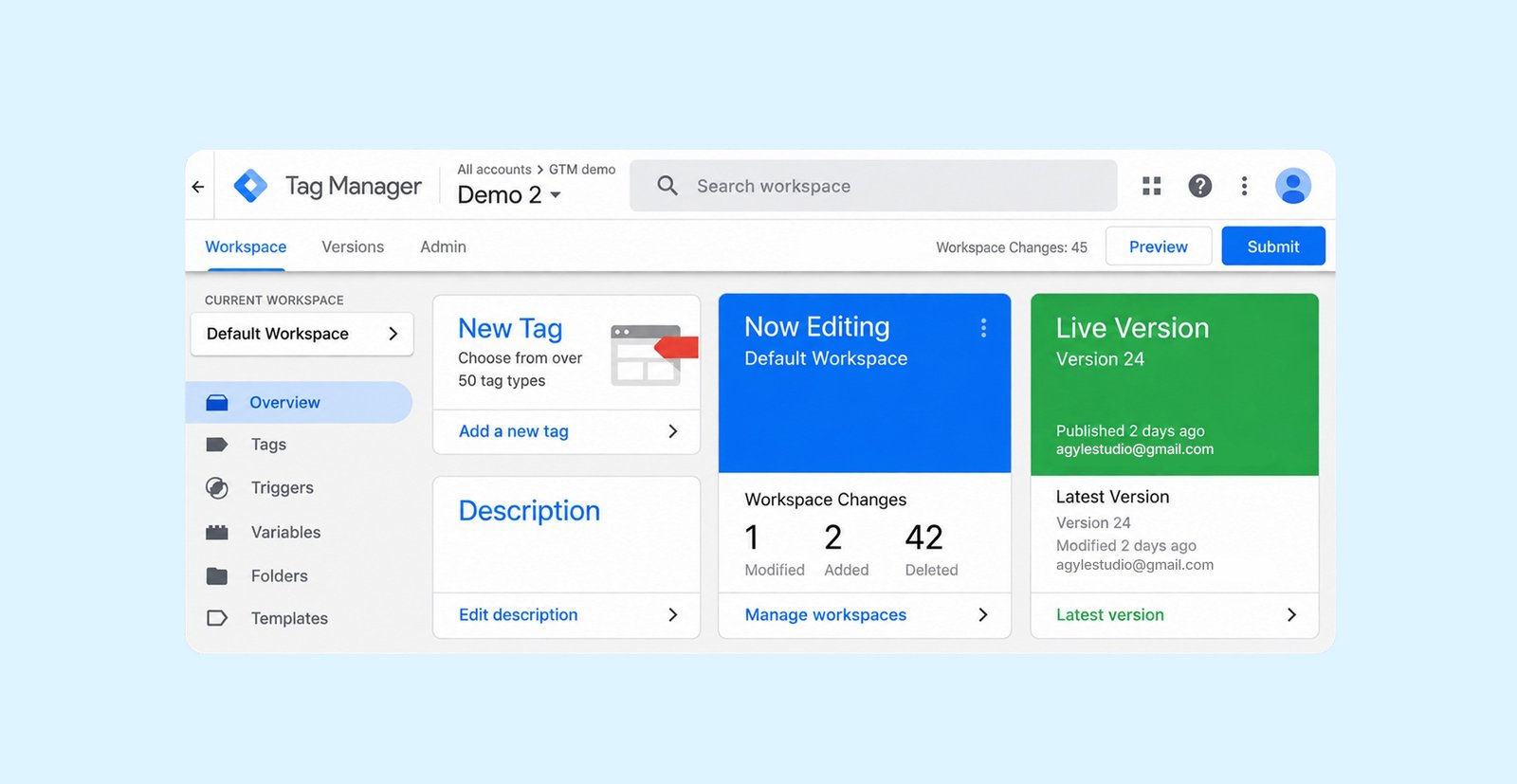
Imagine you want to track when someone clicks the "Get a Quote" button on your website.
Your setup could look like this:
Tag
Google Analytics Event
Trigger
Click on "Get a Quote" button
Event
generate_lead
The flow would be:
User clicks button
↓
Trigger detects click
↓
Tag fires
↓
Event is sent
↓
Analytics records the interaction
This is a simple example of how GTM can help marketers track important website interactions.
Tips: When naming analytics events, use a clear and consistent naming system so that reports remain understandable as more events are added.
These two tools are often confused.
Google Tag Manager
Manages tags and tracking implementations.
Google Analytics
Analyzes website and app data.
They are not the same tool.
GTM helps implement tracking.
GA4 helps analyze the data.
They can work together.
Tips: Think of GTM as the implementation layer and GA4 as the analytics layer. GTM can send data, while Analytics helps you interpret it.
Installing GTM Incorrectly
If the container is not installed correctly, your tags may not work as expected.
Publishing Without Testing
Always test your tags and triggers before publishing.
Using Too Many Tags
Don't create unnecessary tracking tags. Keep your implementation organized.
Poor Naming
Names such as "Tag 1" or "Trigger 2" can become confusing later.
Use descriptive names such as:
Creating Duplicate Tracking
If the same tracking code is installed through multiple methods, you may end up collecting duplicate data.
Always check your existing setup before adding another implementation.
Tips: Duplicate tracking is one of the easiest ways to damage analytics data. Audit existing plugins, theme code and GTM before installing another tag.
A basic GTM workflow looks like this:
Create GTM Account
↓
Create Container
↓
Install GTM on Website
↓
Create Tag
↓
Create Trigger
↓
Add Variables if Required
↓
Test in Preview Mode
↓
Publish
↓
Monitor Data
Tips: Follow a repeatable process for every tracking change: configure it, test it, publish it, then verify the data after publishing.
Google Tag Manager can make website tracking much easier to manage, especially when a business uses multiple marketing and analytics platforms.
Instead of adding and changing tracking codes throughout your website, you can manage many implementations from one central location.
For digital marketers, GTM becomes particularly useful when working with Google Analytics, Google Ads conversion tracking, Meta Pixel, and other marketing tools.
The important thing is to keep your setup simple, organized, and properly tested.
Create → Configure → Test → Publish → Monitor
That simple process can help you maintain a cleaner and more reliable tracking setup.